This website uses cookies. By clicking Accept, you consent to the use of cookies. Click Here to learn more about how we use cookies.
Turn on suggestions
Auto-suggest helps you quickly narrow down your search results by suggesting possible matches as you type.
Showing results for
- Extreme Networks
- Community List
- Network Management & Authentication
- ExtremeCloud IQ
- Devicemanagement-Devicelist download
Options
- Subscribe to RSS Feed
- Mark Topic as New
- Mark Topic as Read
- Float this Topic for Current User
- Bookmark
- Subscribe
- Mute
- Printer Friendly Page
Devicemanagement-Devicelist download

Options
- Mark as New
- Bookmark
- Subscribe
- Mute
- Subscribe to RSS Feed
- Get Direct Link
- Report Inappropriate Content
02-07-2023 04:35 AM
HI,
Here is a question about when i export the device management device list in XIQ.
So im in the XIQ interface >> Devices. I click on download, and get a .csv file. When i open the .csv file in Excel i have noticed that there are a lot of MAC addresses that are messed up. Like this export/download (ive erased some of the info obviously):
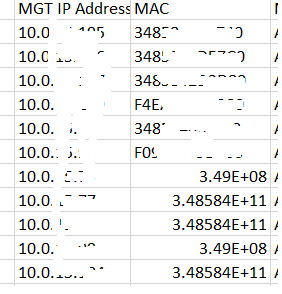
No matter what you change the cell to (number, text, etc), they stay messed up. I really needed a few MAC addresses for some troubleshooting, and figured the best way is to download the device list. Well, i got lucky with some of the MAC addresses, they were not messed up, but i had a handful that i needed and instead of being able to use the .csv file, i had to go back into XIQ, highlight and copy it. When i tried to paste it into Excel it messed it up again, so i had to paste it into a text file instead.
Whats going on? and is this fixable?
thanks much,
Jason.
Solved! Go to Solution.
1 ACCEPTED SOLUTION

Options
- Mark as New
- Bookmark
- Subscribe
- Mute
- Subscribe to RSS Feed
- Get Direct Link
- Report Inappropriate Content
01-04-2024 11:38 AM
I know this is an old thread, but I came across this when searching for something else and thought I would provide the solution for anyone else that may come across this. The issue is in how Excel handles what appears to it to be very large numbers. This is because the default formatting of cells is set to General. The work around to this to change the formatting of the cell from General to Text. The easy way to do this is instead of directly opening the csv file with Excel, open Excel first and then import the csv. When you import the csv, you can change the needed column(s) to Text during import. I haven't had this issue with MACs before, but I have had to do this with serial numbers for years. Depending upon your version of Office and your preference, the process can be a little different. Older versions of Excel (2016 and older), you use the Text Import Wizard (which I prefer). Newer versions (365 and 2019 and newer), you can re-enable the Legacy Text Import Wizard or use the new Power Query.
6 REPLIES 6

Options
- Mark as New
- Bookmark
- Subscribe
- Mute
- Subscribe to RSS Feed
- Get Direct Link
- Report Inappropriate Content
02-07-2023 10:19 AM
Hello Jason,
Please try opening the same file in Notepad++, do you still encounter this issue?
Tested it in Notepad++ and all formatting previously seen in Excel was removed. Should even work with basic notepad.
BR
Christoph S.
Options
- Mark as New
- Bookmark
- Subscribe
- Mute
- Subscribe to RSS Feed
- Get Direct Link
- Report Inappropriate Content
02-10-2023 07:52 AM
Hi,
No problem if I open them in Notepad++
But it would be better to have non-messed up data in Excel, so i can manipulate the data.
Any idea's?
Jason.

